Learn · Updated
Browser vs Desktop Music Visualisers
Short answer: Browser-based music visualisers need no installation and work on any computer, but depend on browser support and sometimes upload your audio; desktop visualisers offer more performance, live output to projectors and other software, and offline use.
Music visualisers come as web apps that run in a browser and desktop applications installed on Windows, macOS or Linux. Both can produce excellent results; the right choice depends on what you are making.
At a glance
| Browser-based | Desktop | |
|---|---|---|
| Installation | None | Download and install |
| Works on | Any computer with a supported browser | Specific operating systems |
| Audio privacy | Depends: local rendering or cloud upload | Stays on your computer |
| Performance | Good; limited by browser and WebGL/WebGPU | Full access to GPU and CPU |
| Live output | Full-screen window; system audio capture in some browsers | Multiple displays, Syphon/Spout, NDI, MIDI, OSC |
| Offline use | Usually needs a connection to load | Yes |
| Typical pricing | Free plans, subscriptions or credits | One-time licences, subscriptions or free/open source |
| Collaboration and templates | Often built in | Varies |
Browser-based visualisers
Online music visualisers use WebGL (and increasingly WebGPU) for graphics and the Web Audio API for analysis. Their main advantage is convenience: open a page, drop in a track and export. That suits musicians who make occasional release videos and do not want to learn a complex application.
There are two rendering approaches:
- Cloud rendering: your audio and project are uploaded and rendered on the developer’s servers. Fast on any device, but the file leaves your computer and rendering usually consumes plan credits.
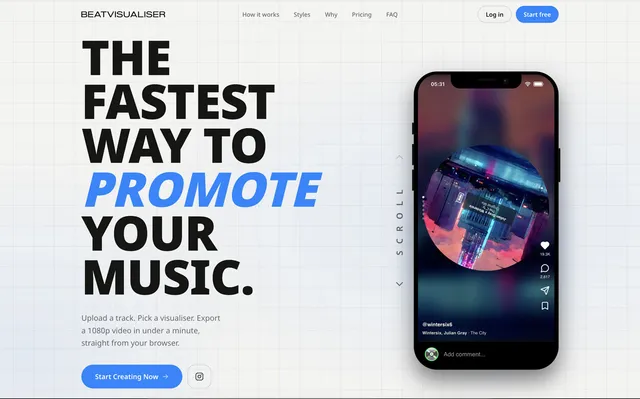
- Local rendering: the browser renders the video on your own machine using its GPU, as in BeatVisualiser and Vizzy. Audio does not need to be uploaded, and speed depends on your hardware.
Browser support matters: some tools rely on features available only in Chromium-based browsers (Chrome, Edge, Brave, Arc), so Safari or Firefox users should check compatibility first.
For real-time listening and streaming, browser tools such as vizz.fm and Butterchurn run instantly; capturing system audio is possible through screen sharing in Chromium browsers.
Desktop visualisers
Desktop software has direct access to audio devices and the GPU, which matters most for live work:
- Low-latency audio input from sound cards and mixers.
- Multiple outputs to projectors and LED processors.
- Inter-application video through Syphon (macOS), Spout (Windows) and NDI (network).
- MIDI, OSC and DMX control.
That is why live visual tools such as Synesthesia, Resolume and TouchDesigner are desktop applications. Desktop tools are also the norm for listening visualisers that react to all system audio, such as MilkDrop 3 on Windows and projectM on Linux and macOS, and for DAW plugins.
Which should you choose?
- A release video, occasionally: start with a browser tool. Check watermarks, length limits and whether it renders locally.
- Regular high-volume video output: compare per-video costs of cloud tools with one-time desktop licences.
- Live shows, DJ sets, streams: desktop VJ or live-visual software.
- Visuals while you listen: a lightweight desktop visualiser or a browser visualiser with system audio capture.
- Building your own: browser libraries such as p5.js or Butterchurn, or desktop environments such as TouchDesigner.
Frequently asked questions
Are browser music visualisers as good as desktop ones?
For rendering videos, modern browser tools using WebGL can produce high-quality 1080p and 4K output. For live performance, desktop software still has clear advantages such as multi-display output, Syphon/Spout/NDI, MIDI mapping and lower latency.
Does a browser visualiser upload my song?
Cloud renderers upload the audio to a server. Tools that render locally in the browser can process the file on your own computer without uploading it. Check the product page or the developer's privacy policy.